
TourBox Elite Plus Review: Is It Worth It for Digital Illustrators?
As a digital illustrator, I kept coming across glowing reviews for the TourBox controller online—and I finally caved and splurged on their most expensive model, the TourBox Elite Plus. But does this controller actually live up to all the buzz for digital artists? In this review, I’m sharing my honest take after using it for a few weeks, from unboxing it to incorporating it into my daily workflow.
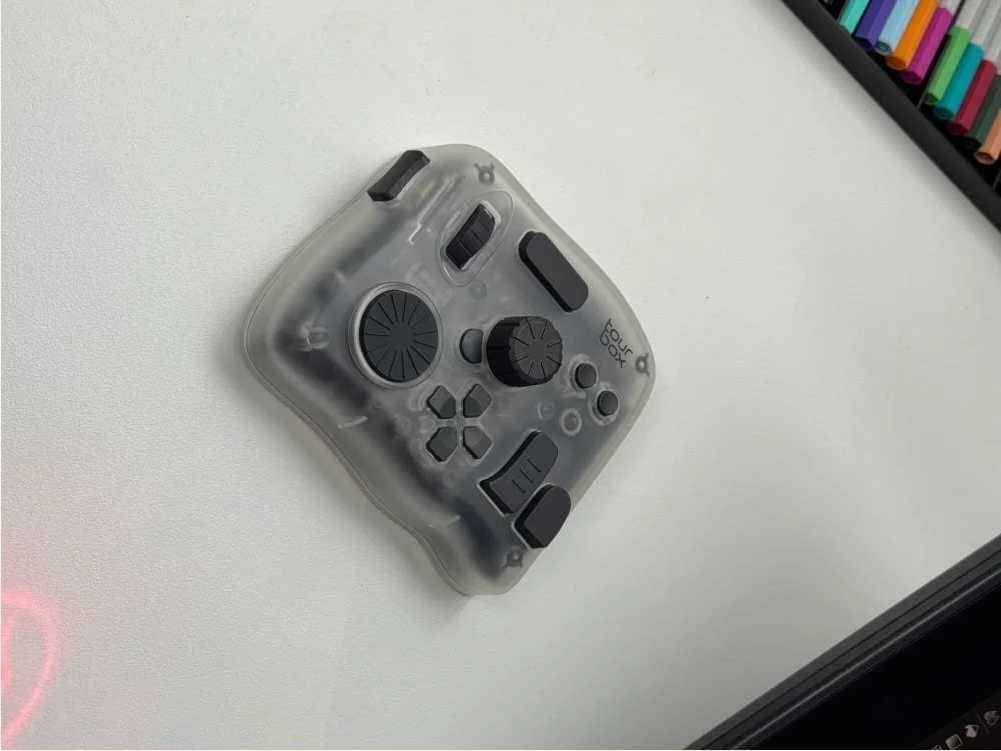
Let’s kick things off with unboxing and design. Right when I took it out of the box, the TourBox Elite Plus felt solid—its body is made of tough matte plastic that’s both durable and doesn’t show fingerprints. It’s compact and light, so it doesn’t take up much space on my desk, and the rubber feet on the bottom keep it from sliding around while I work. I went with the classic translucent color, which lets you faintly see the internal parts; it has a retro gamepad feel that’s equal parts nostalgic and cool.
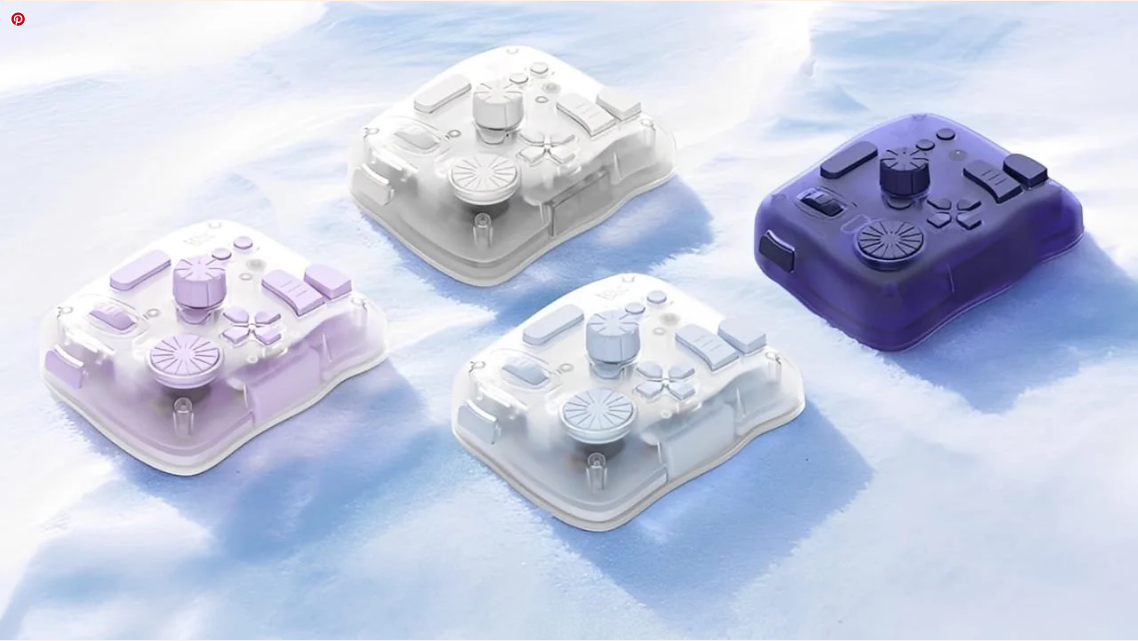
When I bought it, TourBox had just launched the Elite Plus Arctic Series with more color choices, but those were only available for pre-order. They had some pre-order discounts and perks, but I’m way too impatient—I didn’t want to wait weeks for it to ship. So I went with the classic Elite Plus, though I’ll admit I have a tiny bit of regret now; those Arctic Series colors probably would’ve matched my aesthetic better. Taste is totally subjective, after all.
The button and knob layout is really well-designed. I counted about 11 buttons, plus a large dial, a rocker wheel, and a pressable scroll wheel. What I love most is that each button and dial has a unique shape—they feel different when I touch them and give clear tactile feedback, which helped me build muscle memory super quickly. Within a day, I could reach for the undo button or brush mode switch without even looking down, which is a total game-changer for staying in the creative zone.
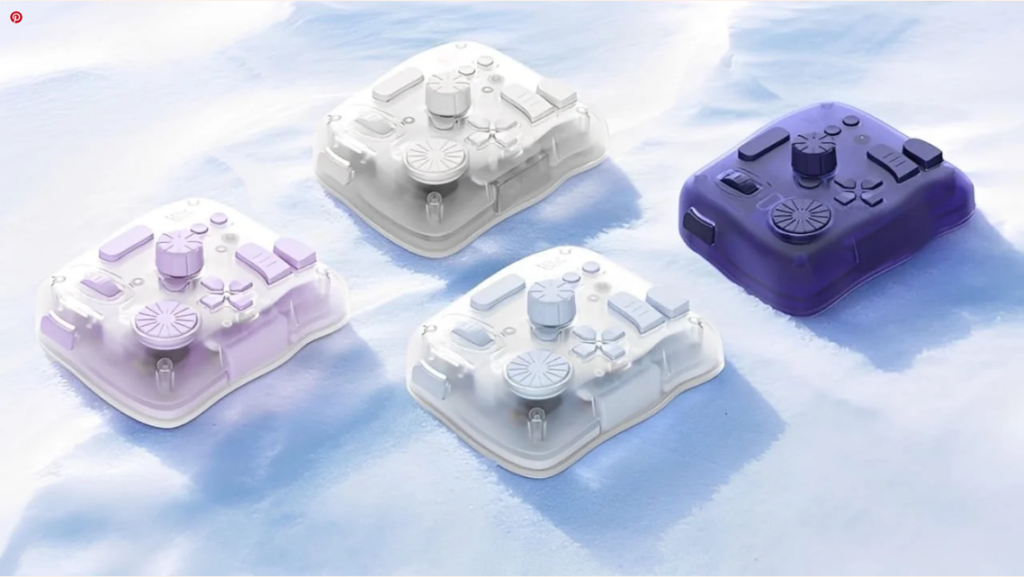
That said, the translucent design isn’t perfect. In ads, it looks sleek and high-end, but up close, it’s a bit too “exposed”—like you’re staring at bare electronic components. It’s missing that polished, premium feel I expected from a top-of-the-line controller. I also thought the look was a little weird at first, though that might just be because I wasn’t used to having it on my desk yet.
Next up, the setup process. As TourBox’s flagship model, the Elite Plus works with both desktops and tablets (including iPads and Android tablets). You can connect it via USB-C or Bluetooth, but if you’re using a tablet, Bluetooth is your only option—and the tablet will recognize it as an external keyboard. I started by plugging it into my computer with a USB cable, then downloaded the official TourBox Console software from their website to get it set up.
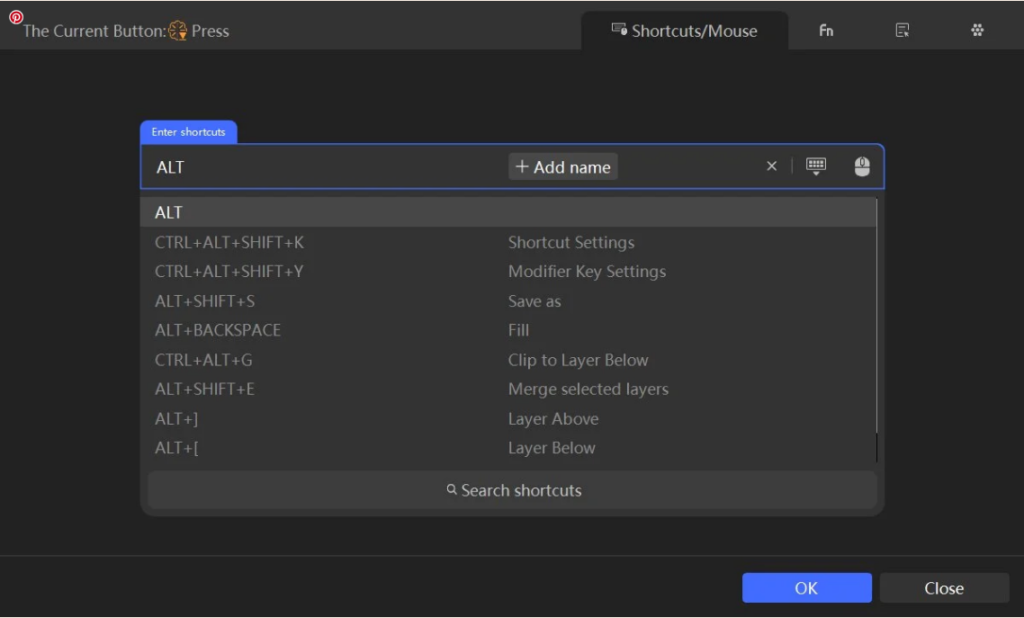
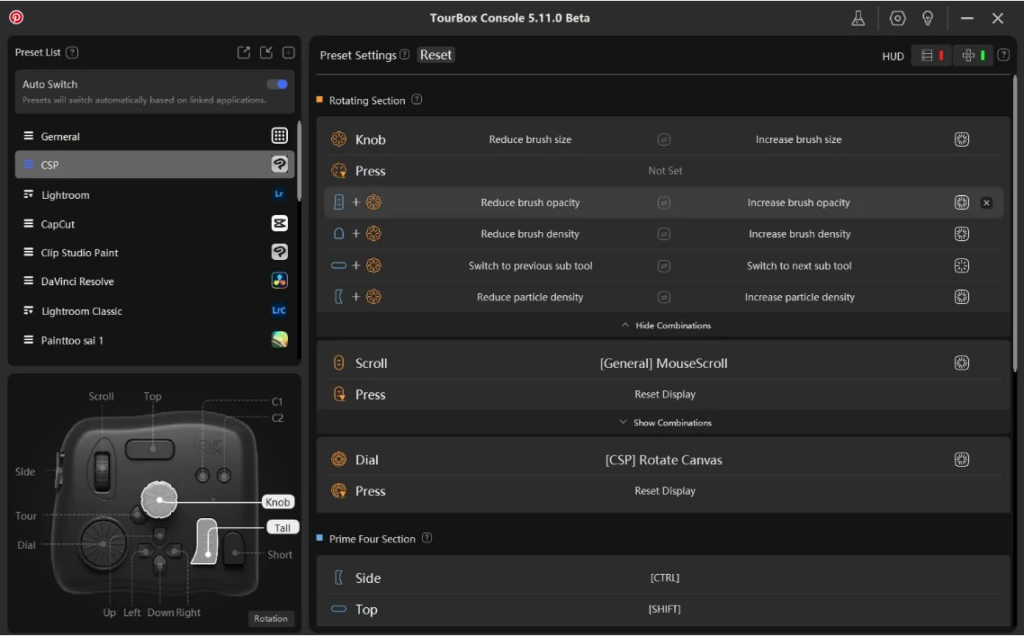
The software is pretty straightforward: you can load official presets or customize every button and knob to fit your needs. The official presets are actually really good—things like brush size, opacity, mouse wheel controls, and canvas rotation were already set up, so I only needed to make small adjustments to match my workflow. If you know the shortcuts for your creative apps (I use CSP most of the time), setup is a piece of cake, and the interface even has shortcut hints to help you out.
My only gripe with setup is that TourBox doesn’t have deep built-in support for CSP. Apps like Photoshop and Lightroom get more built-in features, so if you’re not familiar with CSP shortcuts (or other non-Adobe apps), setting everything up can be a bit of a hassle. It’s not a dealbreaker, but it’s something to keep in mind if CSP is your go-to tool.
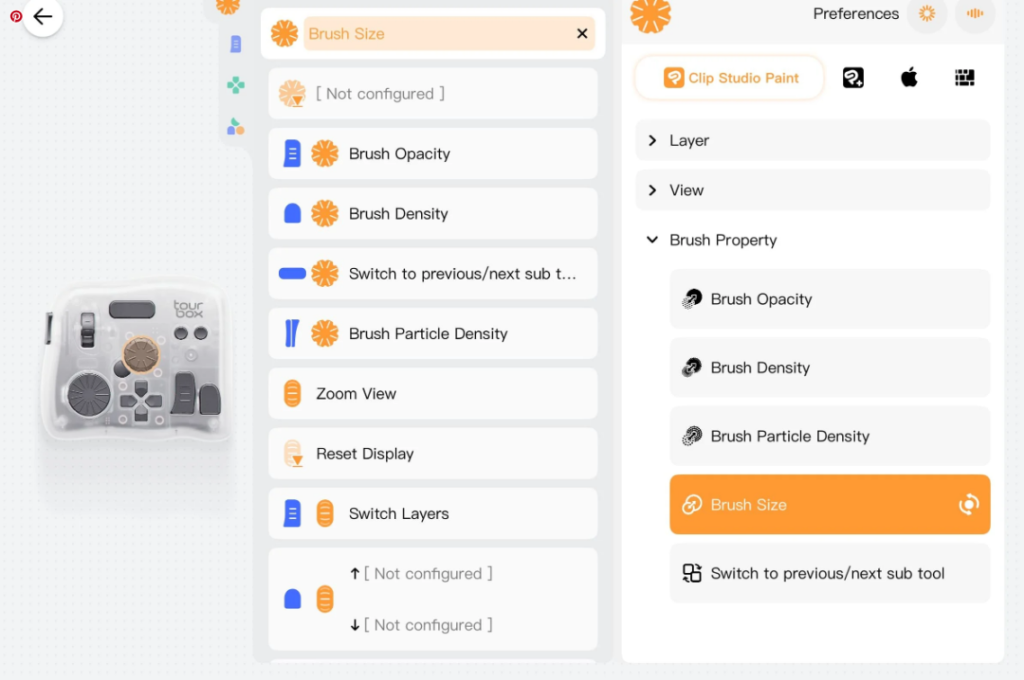
I haven’t spent too much time using the Elite Plus on my iPad yet—I’ve been sticking to my desktop for most of my work—but I did test it out briefly. To use it on an iPad, you need to download the TourBox Console app from the App Store, and the setup screen is similar to the desktop version. I’ll share more detailed thoughts on the iPad experience once I’ve used it more, but so far, it connects smoothly.
One important thing to note: right now, the Elite Plus is the only TourBox model that works with both desktops and tablets—that’s why it’s the priciest. But aside from that tablet compatibility, it doesn’t have any major functional differences from the cheaper models. So if you work on both desktop and tablet, the Elite Plus is a no-brainer. Even if you mainly work on desktop (like me) but think you might try iPad drawing down the line, it’s worth splurging on now to avoid regretting it later.
Now, the most important part: how it feels to use. Honestly, the TourBox has made my drawing process so much smoother. Small, tedious tasks that used to require switching brushes, tools, or layers now take just a single press or twist of a dial. Adjusting values with the dial is way more precise than dragging with a mouse, and I especially love using it to change brush size—even after a full day of drawing, my fingers don’t get sore. Before, using a trackpad or keyboard to adjust brush size would leave my wrist aching by the end of the day, but the dial feels comfortable and intuitive.
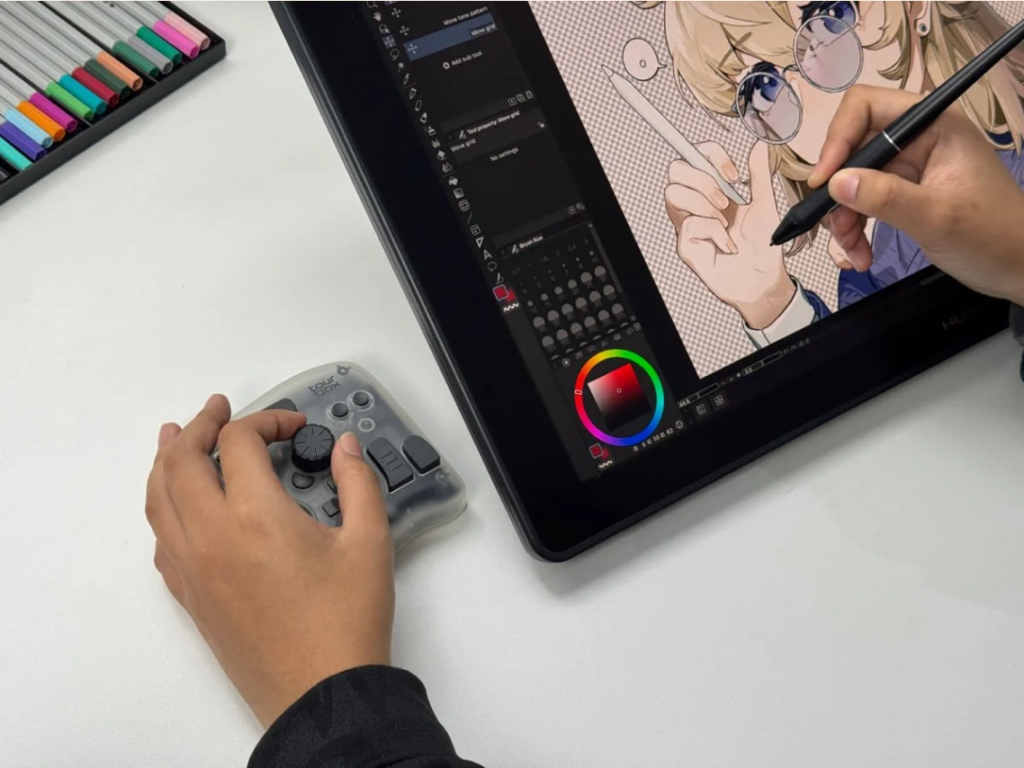
The tactile feedback is another standout feature. With haptic feedback turned on, I can feel every small adjustment at my fingertips—it’s like I’m physically touching and shaping the image, not just clicking around in software. That level of control is something a mouse and keyboard can’t match. Plus, there’s no lag; changes show up on the screen instantly, which makes the whole process feel more responsive, like the software has a “heartbeat” as I work.
But let’s be real: the TourBox isn’t a magic tool you can use right out of the box. It takes patience to customize it to your workflow. The first time I used it, I went back to the Console settings several times to tweak the button layout until it felt natural. There’s a bit of a learning curve, but once you get the hang of it, the efficiency gains are obvious—like tuning a car to match your driving style. If you’re new to digital art, I don’t think the TourBox is a must-buy right away; it’s not very beginner-friendly. But if you’re an experienced artist, you’ll pick it up in no time.

Overall, the pros of the TourBox Elite Plus far outweigh the cons. It’s sped up my daily drawing work, turning tedious steps into quick, easy actions. Using it with CSP feels more efficient—all my shortcut commands are right at my fingertips, so I can switch tools or adjust settings without breaking my creative flow. That alone makes it worth the investment.
There are a few small areas that could be better, though. When I tested it on my iPad, the dial felt a bit laggy at times. Since I mainly use it on desktop, I’m not sure if that’s an issue with the app, a system conflict, or something else—but I’m hoping TourBox fixes it in a future update. Also, the learning curve can be a barrier for new users; you have to put in the time to tweak the buttons in the Console to make it work for you.
But once you’ve set up your preferred profile, the improvement to your workflow is undeniable. For me, it’s been worth every penny—and even with the small flaws, I don’t regret buying it. If you’re a digital artist looking to streamline your process and reduce wrist strain, the TourBox Elite Plus is definitely worth considering—just be ready to put in a little time to customize it to your needs.